
2.3. Code Cells#
You can write your Python code in code cells in your Notebook.
To create a code cell:
Click on the +Code button
 from the top right-hand-side notebook toolbar.
A code cell will be created. You can now start writing your Python code inside the code cell.
As before, to run the code cell, click on Play icon
 in the left gutter of the cell
to get the output of the code displayed underneath the code cell.
in the left gutter of the cell
to get the output of the code displayed underneath the code cell.
Below is an example of how a code cell and its output after running the code cell will look in your Notebook.
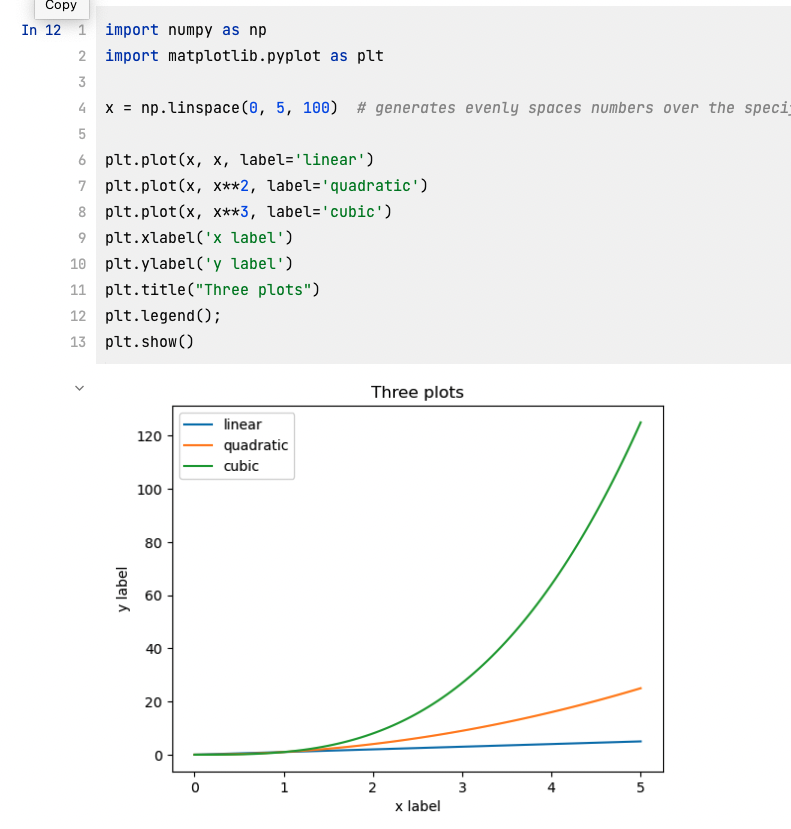
Fig. 2.3 An example of a code cell in Jupyter Notebook and its output.#
Exercise 2.3 (Exploring code cells)
Level:
Explore writing Python code in code cells. Write the code shown in Fig. 2.3, and execute it in a Jupyter Notebook.
Name this file as notebook3.ipynb
Solution to ( 2.3